Made a typo, forgot a set, or logged the wrong weight? You can change a finished workout at any time.
Find the workout
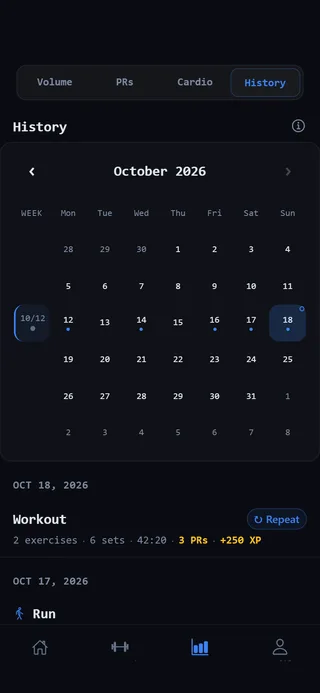 History, with a dot on every day you trained.
- Open the Progress tab and select History at the top. Or scroll to Recent Workouts on the Home tab.
- Tap the workout to open it.
Change sets, add exercises or fix numbers
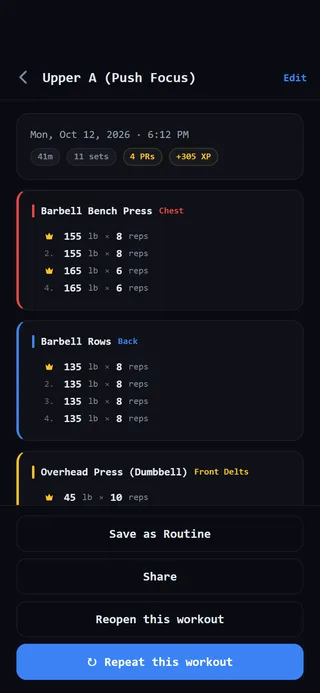 Open a past workout and tap Reopen this workout.
- Scroll to the bottom of the workout and tap Reopen this workout.
- The workout opens on the workout screen. The header says EDITING, with the workout’s original length and date. The clock doesn’t run, so your recorded time stays the same.
- Make your changes. You can edit weights and reps, check or uncheck sets, add sets, and use Add Exercise or Add block.
- Tap Complete Workout at the bottom to save.
The workout keeps its original date. Its XP and personal records are worked out again from what’s there now.
To back out without changing anything, tap the back arrow and choose Discard. You’ll see Discard your changes?, and the workout goes back to History as it was.
Reopen this workout only shows when no other workout is going. Finish or discard the one you’re doing first.
Remove a set or an exercise
- Open the workout and tap Edit at the top right.
- Tap the delete button next to the set or exercise you want to remove.
- Confirm with Delete.
Your records are recalculated straight away. If it’s the last set or exercise left, the app tells you the whole workout will go. Tap Done when you’re finished.
Delete the whole workout
- Open the workout and tap Edit.
- Tap Delete this workout at the bottom, then Delete.
The session goes, and so does the XP it earned. Your records get recalculated. Your level and achievements stay, so deleting old data never takes away a level you already reached.
Cardio sessions
A cardio session is edited a little differently. Open it and tap Edit to change it in the cardio form, then tap Save changes. To remove it, tap Delete session.