
You can delete your GainGames account from inside the app. This removes your account and all your workout data for good. It can’t be undone.
Before you start
Export your data first if you want to keep it. Once your account is gone, your history is gone too. Open Profile, tap the gear, then tap Export your data under Data and sync, and save a backup file or a text copy. See Export your workout history.
Make sure you’re online. Deleting your account happens on our server, so your phone needs a connection.
Delete your account
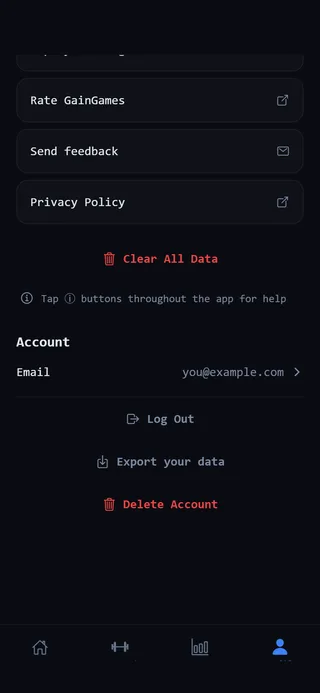 Delete Account is at the bottom of Settings.
- Open the Profile tab.
- Tap the gear at the top right to open Settings.
- Scroll down to Danger zone.
- Tap Delete Account.
- Read the message. It says this will permanently delete your account and all your workout data, and that it can’t be undone.
- Tap Delete Account to confirm, or Cancel to keep your account.
The button shows Deleting… while it works. When it’s done, your account is deleted, the data on this phone is cleared, and you’re signed out. If you signed up with Apple, GainGames also gives up its access to your Apple sign-in.
If it doesn’t work
If something goes wrong, you’ll see Error with the reason, or Could not delete account. Please try again. Your account hasn’t been deleted in that case. Check your connection and try again.
Other options that aren’t deleting
If you only want a fresh start, or want to step away, you may not need to delete your account.
- Clear All Data, under Danger zone in Settings, deletes all your workouts, PRs, routines and progress, on this phone and in your account. Your account itself stays, so you can keep using it.
- Log Out, under Account in Settings, signs you out of this phone. Your data stays in your account for when you sign back in.
Deleting the app from your iPhone doesn’t delete your account. To remove your account and its data, use Delete Account first.