
GainGames comes in a dark look and a light look. Dark is the default. You first choose when you set up the app, on the Dark or light? screen, and you can change it whenever you like.
Change the look
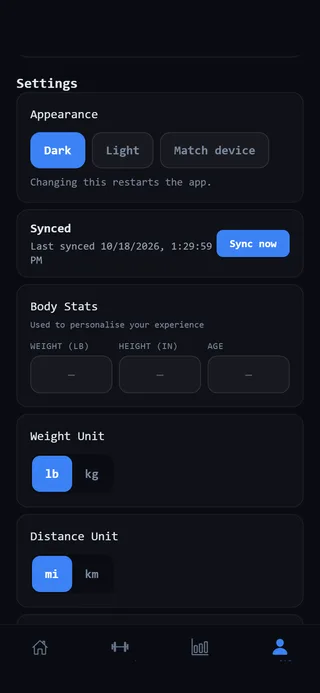 The Appearance setting.
- Open the Profile tab.
- Tap the gear at the top right to open Settings.
- Under Look and feel, find Appearance and tap Dark, Light or Match iPhone.
The app restarts to apply the new look. You’ll see a note saying Changing this restarts the app. Nothing you’ve logged is lost.
What Match iPhone does
Match iPhone follows your phone’s own light or dark setting. It checks each time you open the app. So if your iPhone switches from light to dark while GainGames is open, the app changes the next time you open it.
If you can’t change it
If a workout is going, the buttons are greyed out and you’ll see Finish your workout to change this. Switching restarts the app, so it waits until you’re not in the middle of a session. Finish or discard the workout, then try again.
If you see Saved. Close and reopen the app to see it., the app couldn’t restart itself. Close GainGames fully and open it again.
If you see Couldn’t change that. Try again., nothing was changed. Tap your choice again.
On more than one phone
The look is saved on each phone, not in your account. If you use GainGames on two phones, set each one the way you like.