Had a good session you want to repeat? You can save it as a routine right after you finish, or at any time later from History.
Right after you finish
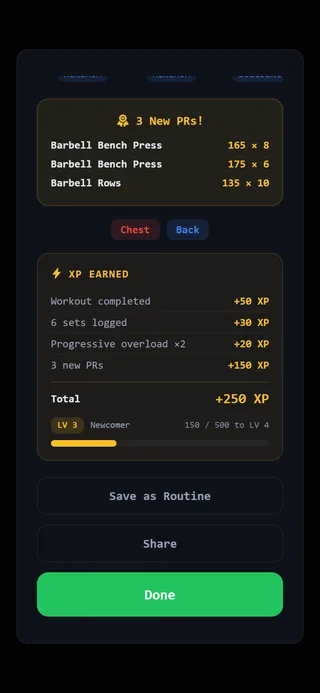 Save as Routine is on the summary.
This option shows when the workout didn’t come from a routine, such as a Quick Workout.
- Finish your workout with Complete Workout.
- On the WORKOUT COMPLETE screen, tap Save as Routine.
- Type a name. It starts as “Workout” plus today’s date, so you can keep that if you like.
- Tap Save. You’ll see Saved ✓.
From any past workout
- Open the Progress tab and select History, or use Recent Workouts on Home.
- Tap the workout.
- Scroll to the bottom and tap Save as Routine.
- Name it and tap Save.
This works for any past workout, including ones that started from a routine. That’s handy if you changed a routine on the day and want to keep the new version as its own routine.
What gets saved
The routine keeps each exercise that has at least one completed working set, along with any blocks such as supersets. Warm-up sets aren’t working sets, so a workout of only warm-ups has nothing to save and the button doesn’t show.
Save a workout you’re planning
If you’re putting a workout together with Build a workout on the Programming tab, you can save it before you start.
- Add your exercises and blocks.
- Type a name in Workout name (optional). Saving needs a name, even though starting doesn’t.
- Tap Save as routine.
If you change it after saving, the button becomes Update routine.
Find your new routine
Saved routines appear on the Programming tab under Routines. Tap Start Workout on its card to begin. You can also tap Edit to change it, Duplicate to make a copy, or add it to a day in a program.