
This walks you through logging one workout from start to finish. You don’t need a program for it. You can add one later.
Open a workout
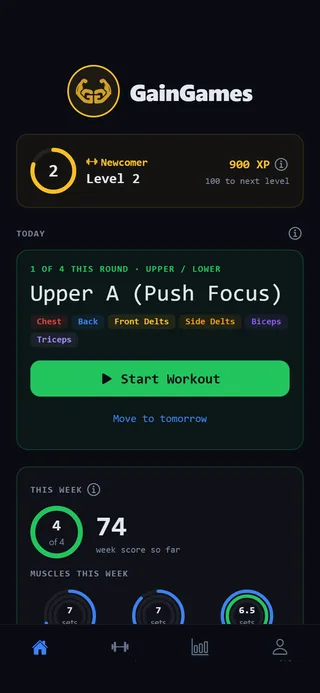 The Home tab. With a program, today’s workout is at the top.
- Open the Home tab.
- Tap Quick Workout. If you have no program yet, you can also tap or start a blank workout under Choose a Program.
- The workout screen opens with your workout’s name at the top and a Start Workout button. Tap it to start the clock. If you skip it, checking off your first set starts the clock for you.
Add an exercise
- Tap Add Exercise.
- Search with Search exercises…, or narrow the list with the Muscle Group and Equipment filters.
- Tap an exercise. It’s added to your workout with one set ready to fill in.
Log your sets
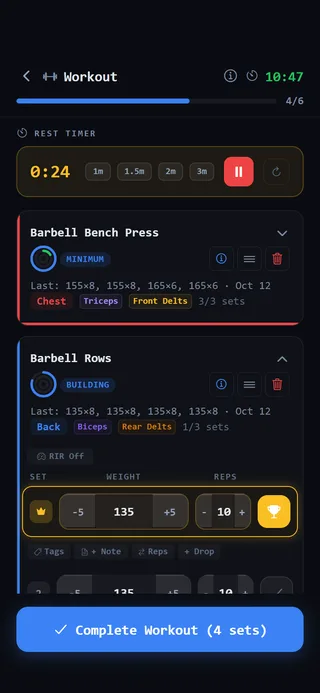 Check off each set. The rest timer starts on its own.
- Enter the weight and reps for the set. You can type the numbers or use the plus and minus buttons.
- Tap the checkmark at the end of the row when you finish the set. The rest timer starts on its own.
- Tap Add Set for the next one. The new set copies the weight and reps from the set before it, so you only change what’s different.
- Doing a warm-up? Tap the set’s number before you check it off. It turns into a W and shows WARM-UP. Warm-up sets don’t count toward volume, records or XP, so the numbers you see reflect your real working sets.
Repeat for each exercise in your workout.
Finish
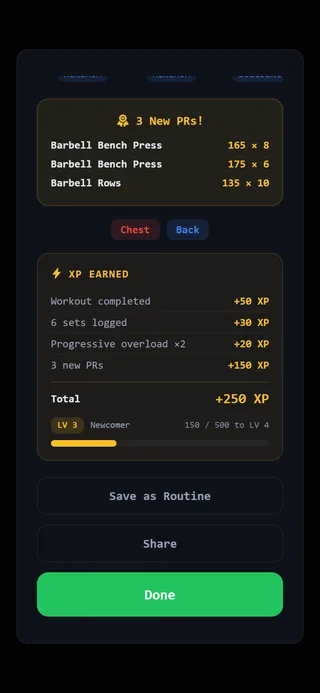 The summary after you finish.
- When you’re done, tap the button at the bottom. It reads Complete Workout followed by how many sets you’ve logged, for example Complete Workout (12 sets).
- If some sets aren’t checked off yet, the app asks first. Tap Keep going to go back, or Finish anyway to save what you’ve done.
- The WORKOUT COMPLETE screen shows your time, sets and volume, any new personal records, and the XP you earned.
- Since this was a quick workout, you’ll also see Save as Routine. Tap it if you want to repeat this workout later. Then tap Done.
Changed your mind?
Tap the back arrow at the top left of the workout screen. You’ll see Discard Workout?. Tap Keep Going to stay, or Discard to throw the workout away. Discarding can’t be undone.
Your workout now shows under Recent Workouts on Home and in History on the Progress tab.